The Mystery of the Missing Game: Why Your Xbox Live Status Isn't Showing on Discord
It's a familiar scenario for many gamers: You've just launched into an epic session on your Xbox, your friends are waiting on Discord, but despite linking your accounts, your game activity isn't showing up. Instead of proudly displaying "Playing [Awesome Xbox Game]," your Discord status remains generic or silent. This can be incredibly frustrating, leading you to wonder if you've missed a crucial setting or if something is fundamentally broken. You're not alone in this digital conundrum. Many users experience issues with their
Xbox Live Status failing to properly integrate and display on Discord, even after diligently linking accounts and ensuring basic settings are correct. This article will delve into the common causes and offer comprehensive solutions to get your gaming presence visible where it matters.
Initial Checks: Laying the Foundation for a Working Connection
Before diving into complex troubleshooting, it's essential to confirm the basics. Often, the solution lies in a simple oversight or a temporary hiccup.
Verify Your Xbox Live Status Independently
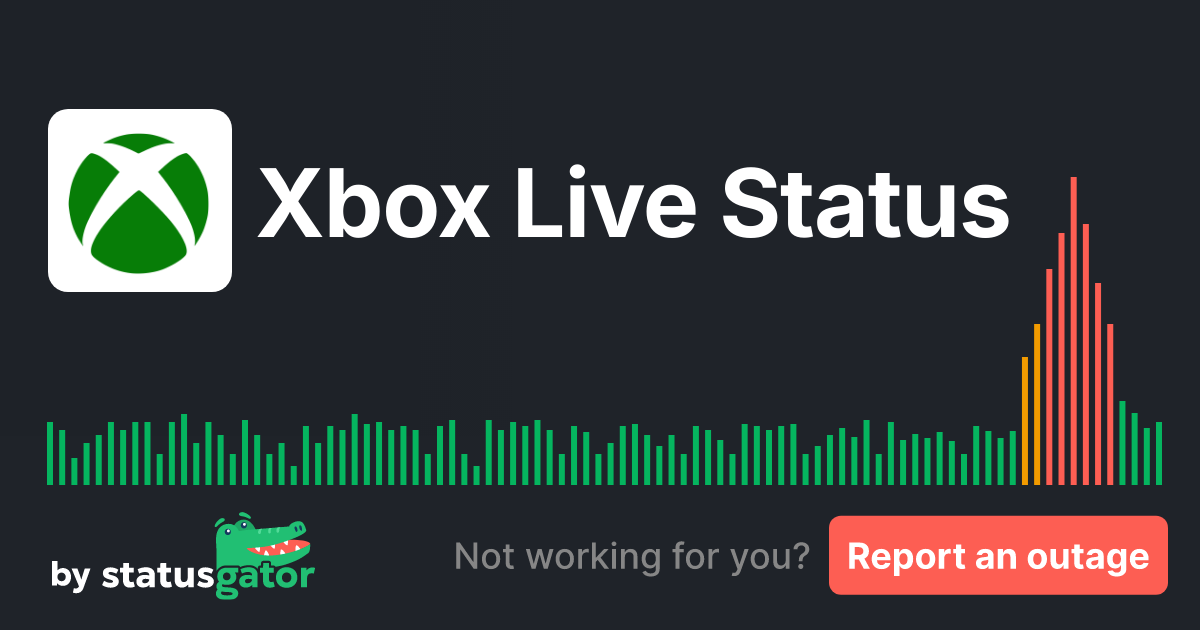
The very first step is to ascertain whether the issue lies with Discord's display or a broader problem with the Xbox network itself. If Xbox Live services are experiencing outages, no amount of Discord tweaking will make your game show.
*
Check Official Xbox Support: Microsoft's Xbox Support website provides real-time updates on service disruptions. This is your most authoritative source for verifying the operational health of Xbox Live.
*
Third-Party Status Trackers: Websites like XBLStatus.com (as mentioned in our reference) constantly monitor Xbox Live services, offering a quick and often accurate snapshot of server health. These tools can be invaluable for quickly determining if the problem is on Microsoft's end.
*
Actionable Tip: Before you even touch Discord, visit an official or reputable third-party Xbox Live status checker. If services are down or limited, patience is key. You can get even more detailed insights into service checks by reading
Get Real-Time Xbox Live Status: Your Accurate Service Check.
Essential Discord and Xbox Account Settings
Even if Xbox Live is fully operational, incorrect settings on either platform can prevent your game activity from being shared.
*
Xbox Privacy Settings: This is a critical, yet frequently overlooked area. Your Xbox privacy settings dictate who can see your online status, game history, and activity.
* Navigate to your Xbox privacy settings (either on your console or via account.xbox.com).
* Under "Privacy & online safety," ensure your settings allow sharing of your activity and game details. Specifically, look for options like "Others can see your game history" and "You can share your online status and what you’re playing." Set these to "Everyone" or "Friends" as appropriate for your preference, but ensure it's not set to "Block."
*
Discord Game Activity Settings: Discord itself has a setting that governs the display of your game activity.
* Open Discord, go to
User Settings (the gear icon near your username).
* Select
Activity Privacy from the left sidebar.
* Ensure "Display currently running game as a status message" is toggled
on.
* You might also check
Registered Games to see if Discord is even detecting your Xbox game, though for console integrations, this is less common than for PC games.
*
Account Linking Confirmation: Double-check that your Xbox account is indeed linked to Discord.
* In Discord User Settings, go to
Connections.
* You should see your Xbox gamertag listed under the "Connections" tab. If it's not there, proceed to the re-linking steps below.
*
Software Updates: Ensure both your Discord application and any relevant Xbox apps (like the Xbox PC app or Xbox Game Bar on Windows) are updated to their latest versions. Outdated software can sometimes lead to integration glitches.
Deep Dive into Discord-Xbox Integration: Troubleshooting Connection Issues
When the basics are in order, and your game still isn't showing, it's time to examine the connection between Discord and Xbox more closely. This often involves refreshing the link and ensuring all permissions are correctly granted.
Re-linking Your Xbox Account on Discord
One of the most effective troubleshooting steps for persistent connection issues is to simply disconnect and then reconnect your Xbox account on Discord. This forces a refresh of the authentication tokens and permissions, often resolving underlying communication breakdowns.
*
Disconnect Your Xbox Account:
* Go to Discord
User Settings >
Connections.
* Find your Xbox connection and click the 'X' button next to it. Confirm the disconnection.
*
Reconnect Your Xbox Account:
* Still in
Connections, click the Xbox icon among the available platforms.
* A browser window will open, prompting you to log in to your Microsoft account associated with your Xbox gamertag.
* Grant the necessary permissions for Discord to access your Xbox Live information.
* Once reconnected, Discord should confirm the link and display your gamertag.
*
Insight: This process essentially provides Discord with a fresh authorization token from Xbox Live. Older tokens can expire or become corrupted, leading to a failure in status updates. Re-linking acts like a digital handshake reset.
Permissions and Privacy Settings: The Silent Saboteurs
While we touched on Xbox privacy earlier, it's worth re-emphasizing its importance. Many users overlook the granular control Xbox Live offers over sharing activity.
*
Xbox "Who can see your details" Settings:
* Beyond general game history, check specific options for "Broadcast & share gameplay" and "See other people's game history." Ensure these are not set to "Block" for the level of sharing you desire.
* On your console, go to
Profile & system > Settings > Account > Privacy & online safety > Xbox privacy > View details & customize. Scrutinize "Game content" and "Online status & history."
*
Discord Server and User Privacy: While less common for global
Xbox Live Status display, if you're experiencing issues in specific servers or with certain friends, review these:
*
Server-Specific Settings: Some Discord servers have bots or roles that might impact how your status is displayed or filtered. This is rare but possible.
*
Friend Privacy: Ensure you haven't accidentally blocked a friend or set specific privacy overrides that prevent them from seeing your status.
Confirming Game Activity Detection
Although console game detection is usually more straightforward when accounts are linked, sometimes Discord might still struggle to register what you're playing.
*
Wait for Detection: After launching an Xbox game, give Discord a few minutes. Sometimes there's a slight delay in the status update propagating through the systems.
*
Restart Discord: Fully close and relaunch the Discord application (not just minimizing it). This can sometimes prompt it to re-scan for active games and refresh connections.
*
Reboot Xbox: A full power cycle of your Xbox console can also resolve minor glitches that might prevent it from accurately reporting your activity to Xbox Live, which then syncs with Discord.
Advanced Troubleshooting & Common Pitfalls
If the previous steps haven't resolved your issue, it's time to explore some less common but equally effective solutions.
Discord Overlay and Background Processes
The Discord overlay, while convenient, can sometimes interfere with game detection or system resources, especially on PC.
*
Disable Discord Overlay: Go to Discord
User Settings >
Game Overlay and toggle "Enable in-game overlay" off. Test if your status appears. If it does, a conflict with the overlay might be the culprit.
*
Background Applications: Other applications running in the background, especially those that interact with games (like other voice chat apps, streaming software, or even some antivirus programs), could potentially interfere with Discord's ability to detect game activity. Try closing non-essential background apps.
*
VPNs and Network Issues: If you're using a VPN, it might mask your IP or create routing issues that affect how Discord communicates with Xbox Live servers. Try temporarily disabling your VPN to see if it resolves the issue. Basic network troubleshooting (router restart, checking firewall settings) can also be surprisingly effective. You can find more detailed network and service troubleshooting advice in
Xbox Live Status Explained: Troubleshooting & Real-Time Updates.
Regional Server Differences and Delays
The internet is vast, and data travels. Sometimes, minor delays can occur due to geographical distance between servers.
*
Propagation Delays: It's possible that your Xbox Live status update takes a few extra moments to propagate from the Xbox network, through Discord's integration, and then finally to your friends' clients. While usually near-instant, brief delays are not unheard of.
*
Server Load: During peak gaming hours, both Xbox Live and Discord servers can experience higher loads, potentially leading to slight delays in status updates.
Restart Everything: The Classic Fix
Often underestimated, a complete system restart can clear out temporary glitches and refresh all processes.
*
Restart Your Xbox Console: Perform a full power cycle.
*
Restart Discord: Close the application completely and relaunch.
*
Restart Your PC (if using Discord on PC): A full system reboot can resolve underlying operating system issues.
*
Clear Discord Cache: While there's no direct "clear cache" button for status issues, sometimes refreshing Discord's internal data can help. You can try reinstalling Discord entirely as a last resort, but usually, a simple restart suffices.
Conclusion
The inability to display your
Xbox Live Status on Discord can be a minor annoyance that disrupts your gaming experience with friends. However, by systematically working through these troubleshooting steps, you can pinpoint the cause and restore your game activity display. From verifying the overall Xbox Live service health to meticulously checking privacy settings, re-linking accounts, and considering advanced network factors, the solution is often within reach. Patience and a methodical approach are your best tools in resolving these integration quirks. With your game status finally showing, you can get back to what matters most: enjoying your favorite Xbox titles with your friends, fully connected and visible.